Global Settings in MyHome IDX, and How They Reach IDX
Set your brand colors and fonts in Elementor, then send them to the IDX side.
Written by IDX Plugin, an independent IDX Broker Developer Partner, not affiliated with IDX Broker.
On this page
In short
- Your brand colors and fonts, set once in Elementor.
- Your WordPress pages pick them up as soon as you save.
- One click on Sync now puts your brand on the IDX side too.
- Clear the IDX Broker cache when an IDX page looks a version behind.
One place for your whole site's look
The site-wide design lives in Elementor's Site Settings, your color palette, typography, spacing and button styles. Set them once and your WordPress pages use them.
Open Site Settings
Site Settings are global, so it does not matter which page you start from. The panel also has a shortcut, MyHome IDX in the WordPress menu then Global Styles, which opens your homepage in Elementor for you.
-
1
From the WordPress toolbar
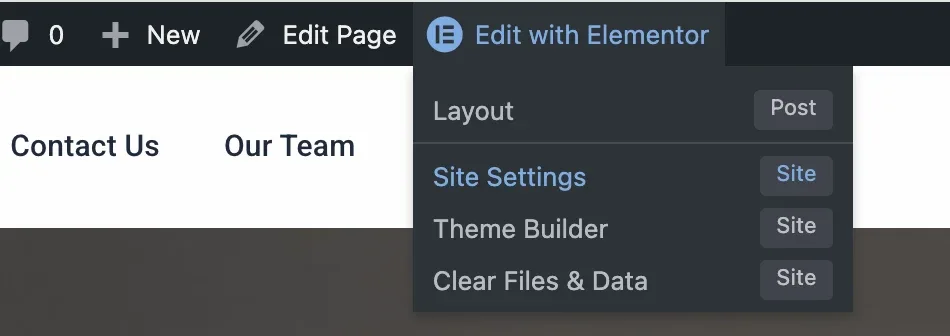
On any page, hover Edit with Elementor in the top toolbar and click Site Settings.
-
2
Or from inside the editor
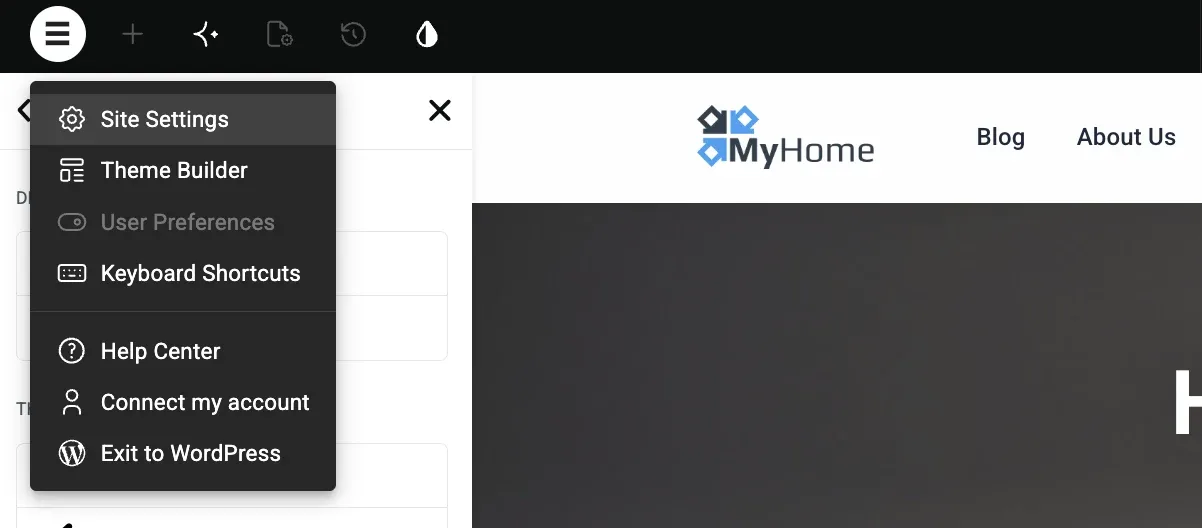
Click the menu icon in the top-left of the editor and choose Site Settings.
-
3
The settings groups
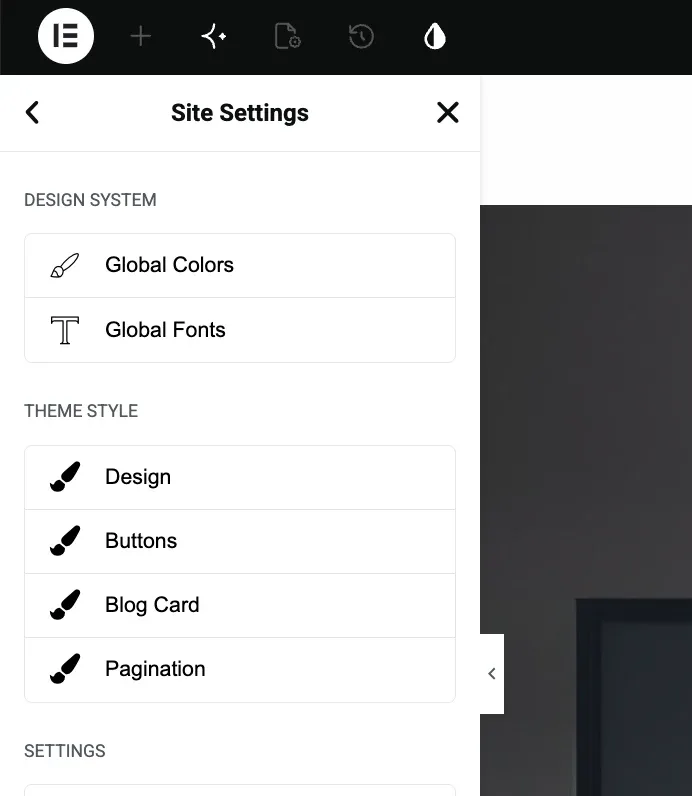
Design System holds Global Colors and Global Fonts. Theme Style holds Design, Buttons, Blog Card and Pagination.
Global Colors
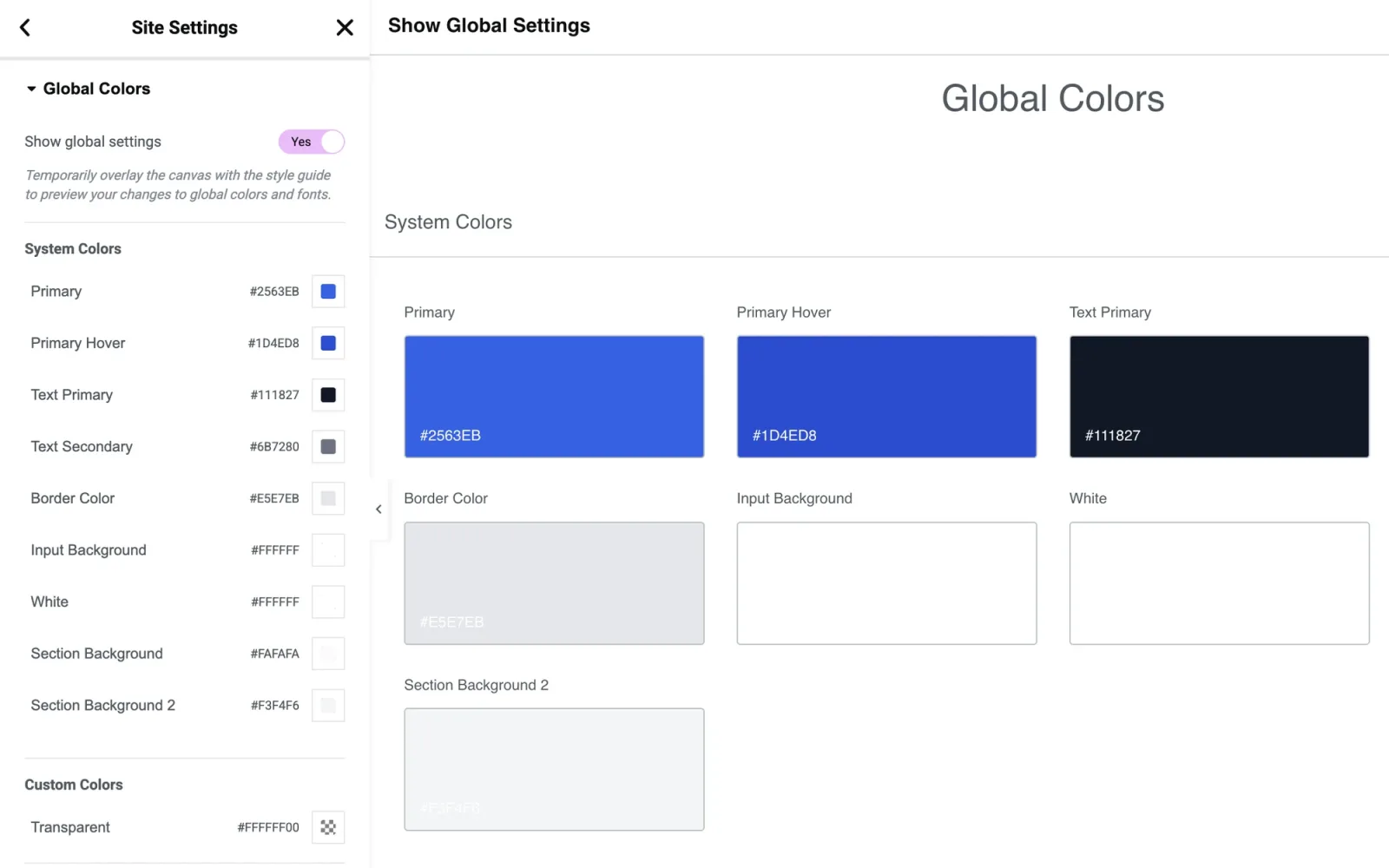
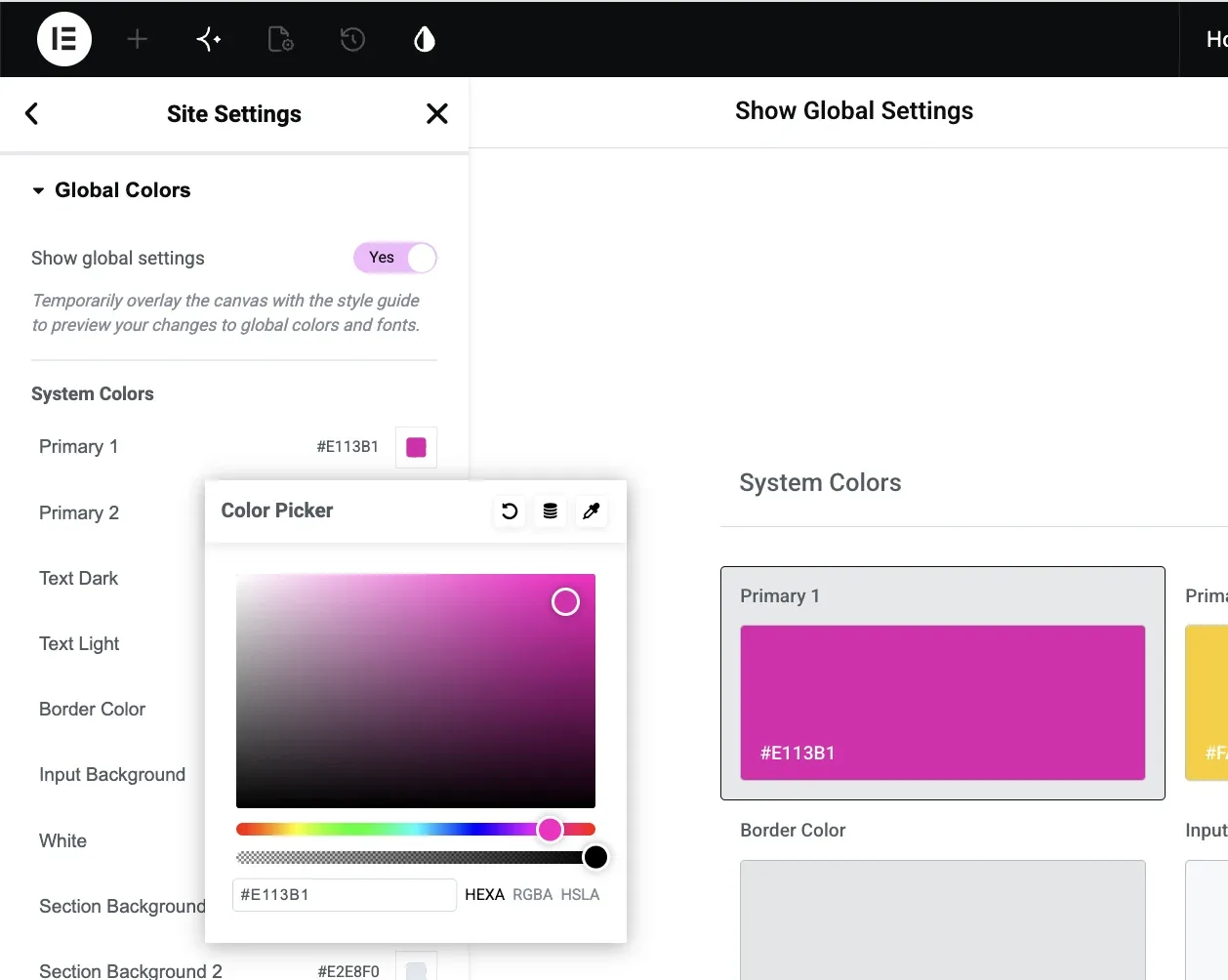
System Colors are your brand palette. Primary 1 is the main interactive color for buttons, links and primary actions, Primary 2 the secondary accent. The rest set text, borders, inputs and section backgrounds.
Global Fonts
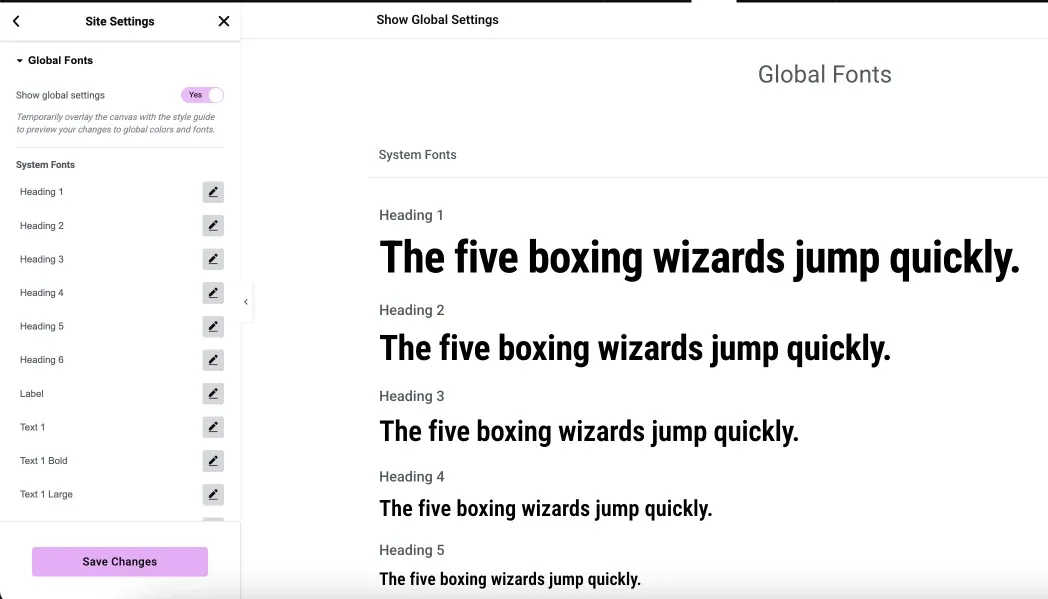
System Fonts define Heading 1 through 6, Label and the Text styles, each with its font family, size, weight and line height. Set them once and the headings and paragraphs across the site follow.
Design, spacing and radius
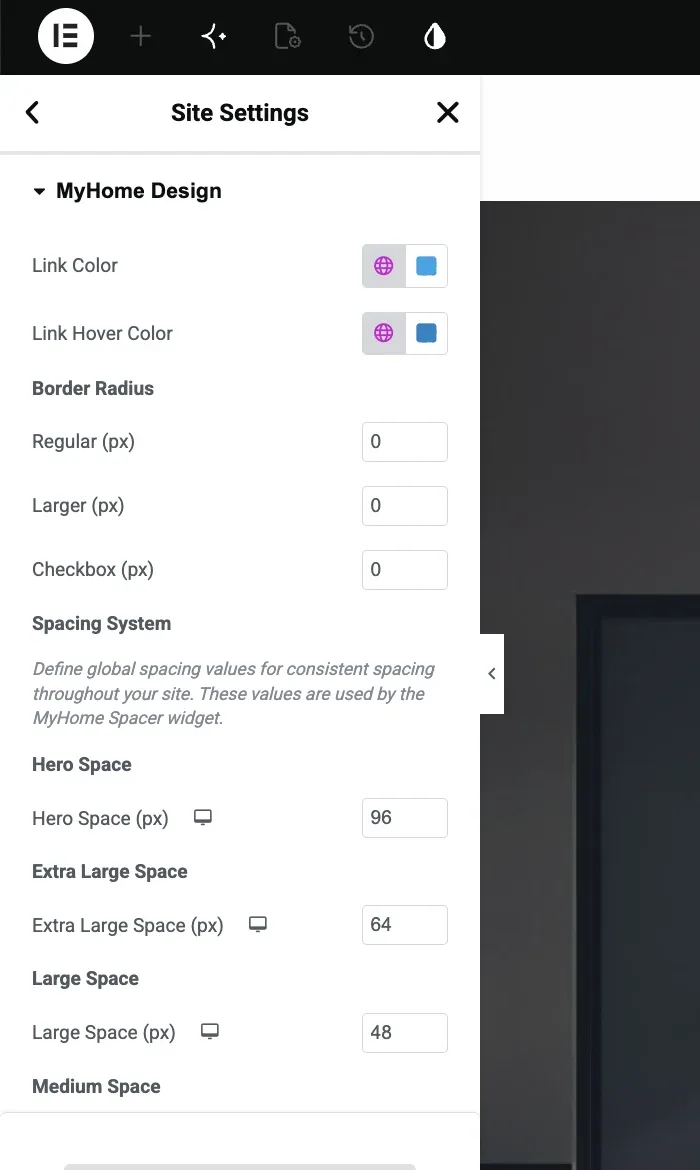
The Design tab, shown as MyHome Design when open, holds link colors, border radius and the Spacing System. The spacing values feed the MyHome Spacer widget, so gaps between sections stay consistent.
Buttons
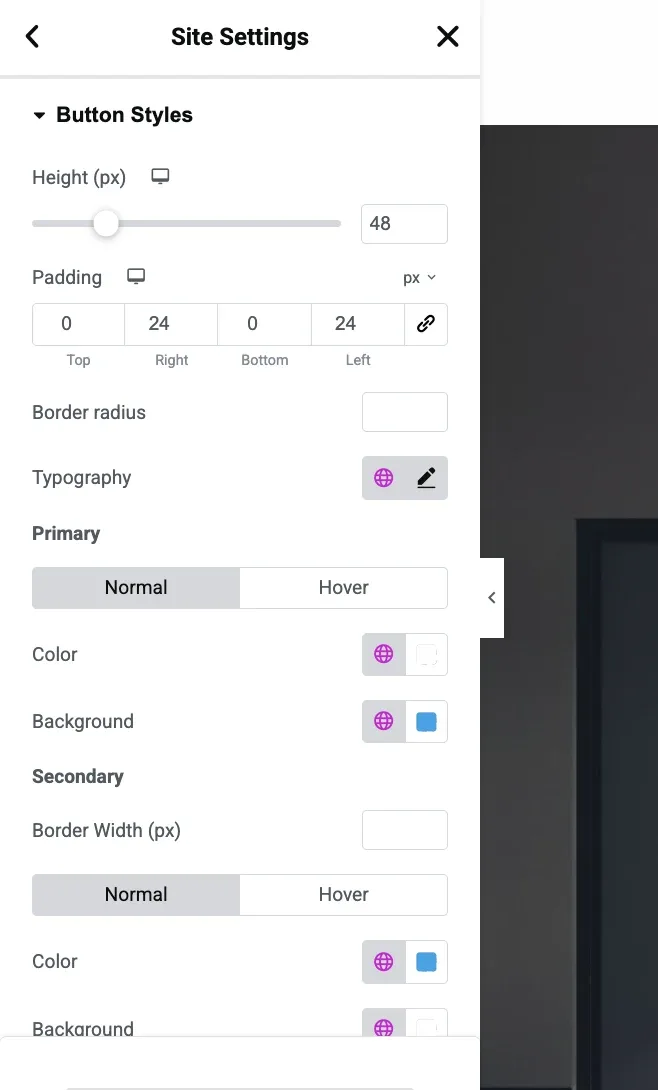
Button Styles set the height, padding, border radius, typography and the normal and hover colors for primary and secondary buttons. They are part of what the sync sends, so your IDX search and listing buttons match too.
Push the same look to IDX
Your search forms, listing widgets and IDX Broker pages do not read Elementor's Site Settings on their own. The IDX Design Sync screen sends your Global Settings over in one click.
Set Primary 1 to a new brand color and click Save Changes. Your WordPress pages pick it up, and IDX stays on the old color until you sync.
-
1
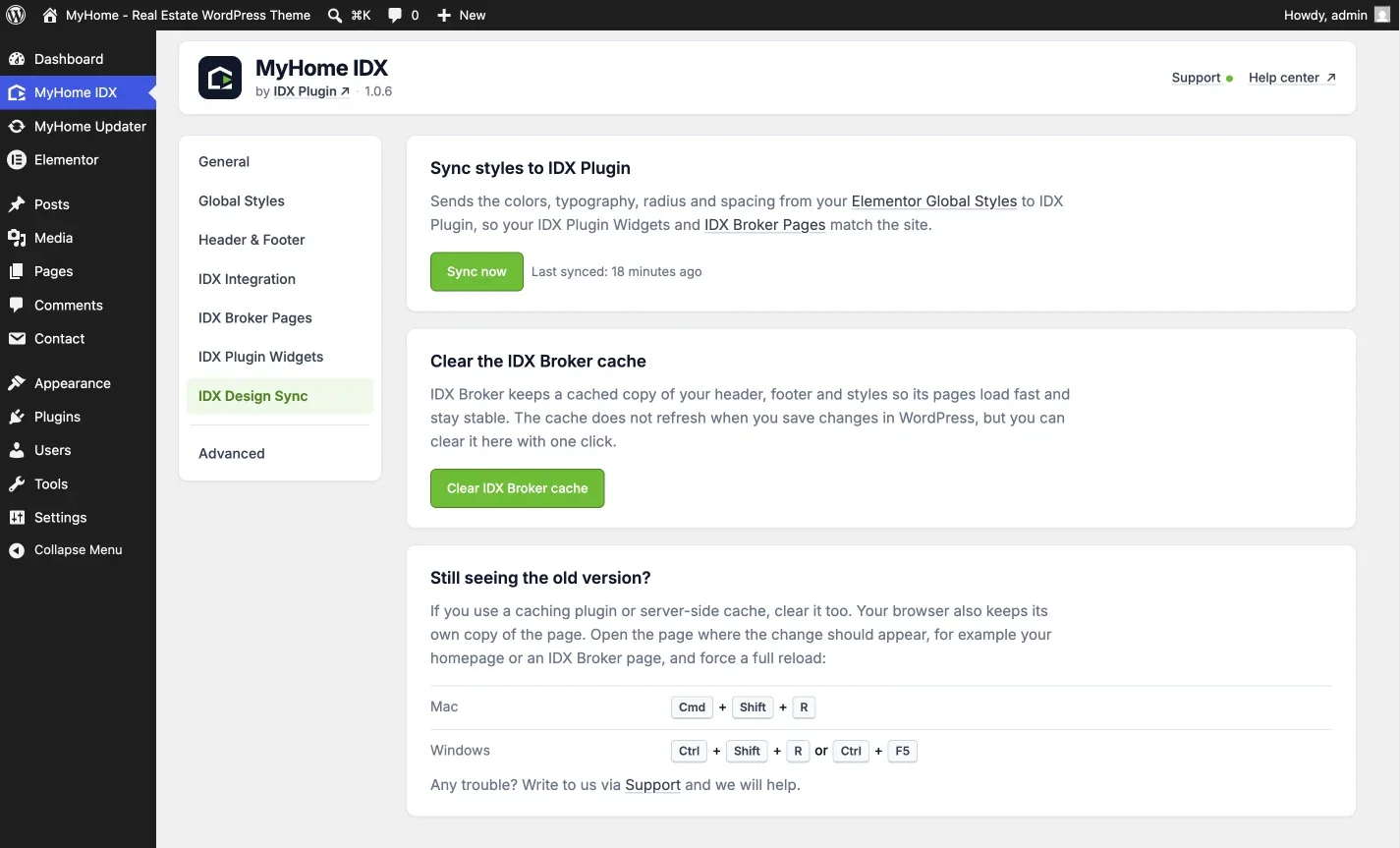
Open IDX Design Sync and click Sync now
MyHome IDX in the WordPress menu, then IDX Design Sync. A note next to the button shows when the last sync happened.
-
2
Confirm
The prompt warns that this overwrites the current style settings in IDX Plugin and that changes can take a few minutes to show. Click Sync now.
-
3
Done
Your settings land in your IDX Plugin dashboard on the Global Styles page, with Brand Primary now the new magenta.
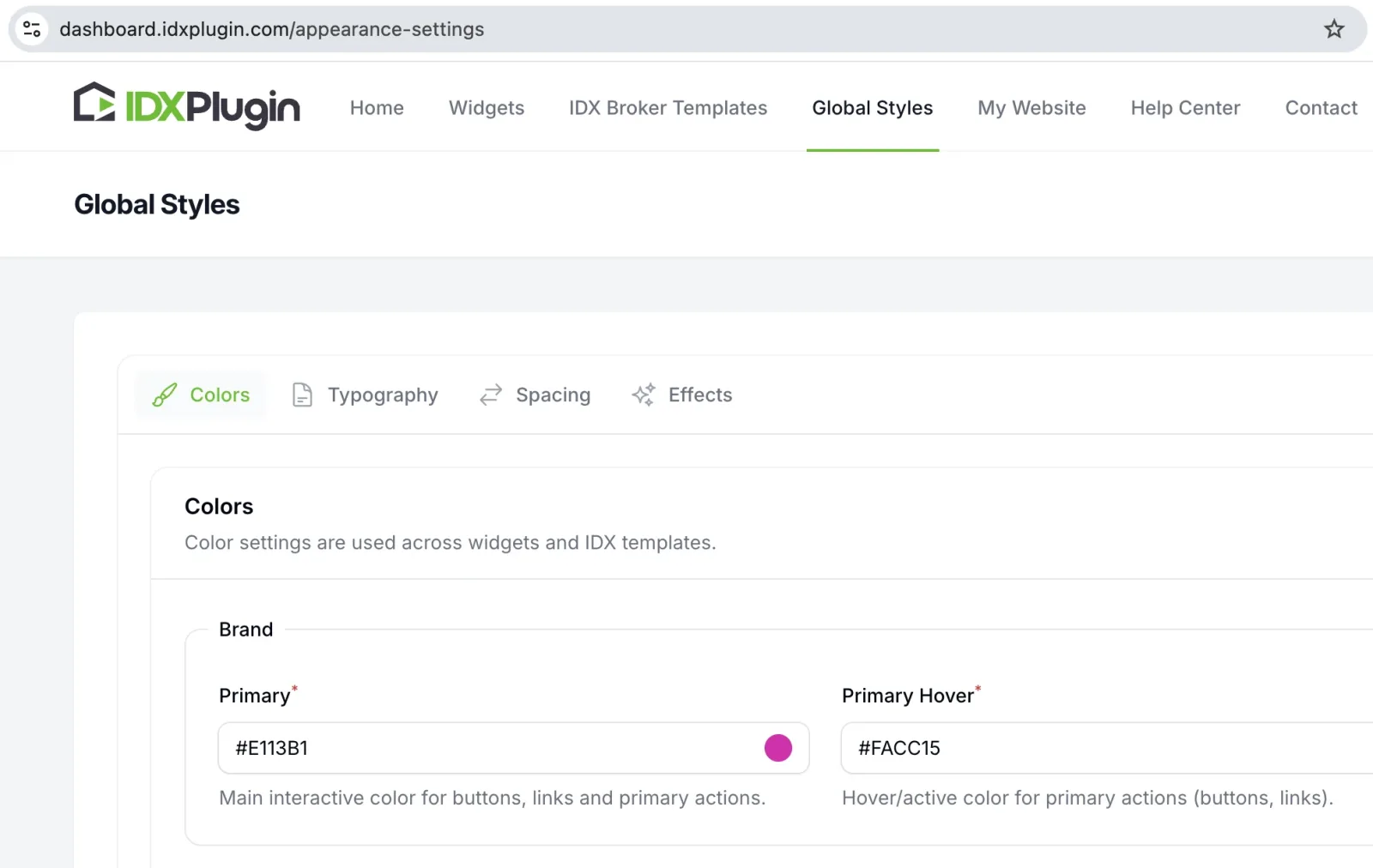
From there it styles the IDX Broker templates you have selected and the IDX widgets.
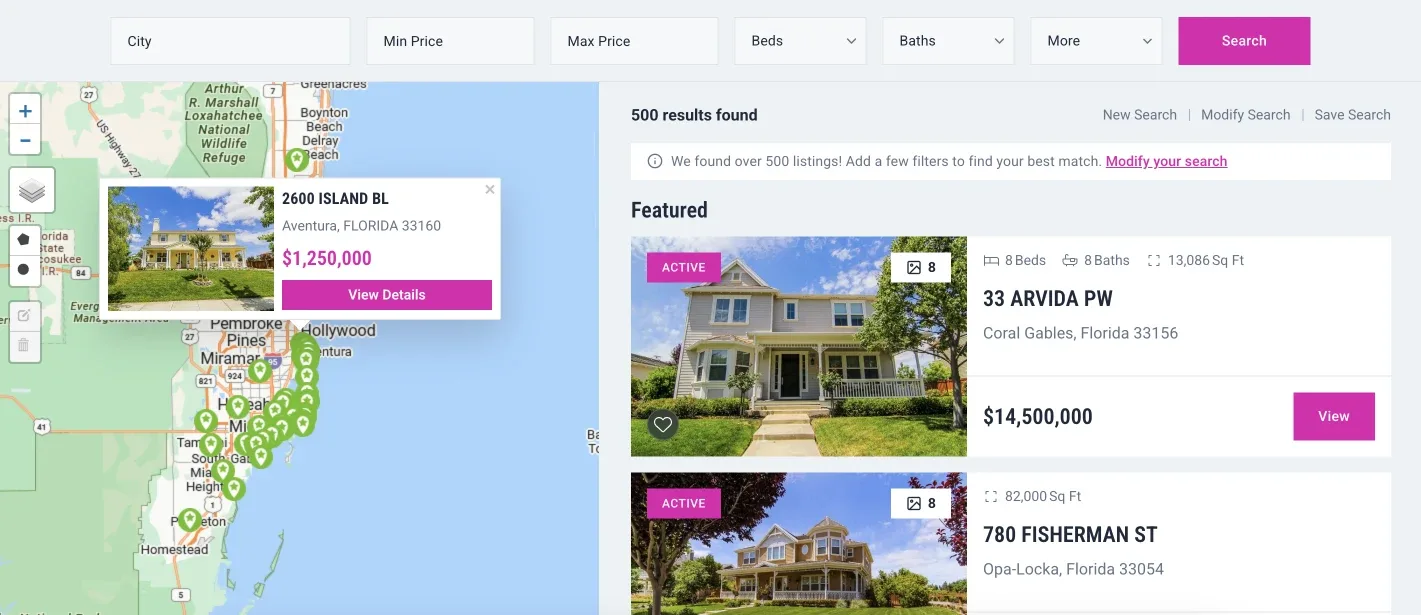
Set it up in Elementor first, then send it over. Whenever you change Global Colors, Fonts, Design or Buttons, click Sync now again. Anything you change directly in Global Styles on idxplugin.com is replaced the next time you send.
When IDX still shows the old design
IDX Broker keeps its own copy of your header, footer and styles, and saving in WordPress does not refresh it. The second card on IDX Design Sync, Clear IDX Broker cache, empties it. Do this after a sync, after editing your layout, and any time an IDX page looks a version behind.
Already on IDX Broker?
Create a free IDX Plugin account, download the theme and set your brand once. Style the whole site and the IDX side together, and we help whenever you get stuck.
Get the theme, it's free No extra invoice. You only pay IDX Broker.